Using Korium well
People and roles
The People page lists everyone in your account and what each person can do. A person has a role inside each workspace they are in, and may also have an account role. This page explains each role, how to add people, and who is allowed to change what.
Two kinds of role
- A workspace role applies inside one workspace: Can read, Can read and share, Promoter or Workspace admin. A person can have a different role in each workspace.
- An account role applies to the whole account: account admin, or billing person. These are not workspace roles, and holding one does not put someone in any workspace.
Workspace roles
| Role | What they can do there | What they cannot do |
|---|---|---|
| Can read | “Finds what is shared here, in search and through their AI tools.” | Share into it. They see “You can share only into a workspace where you can save.” |
| Can read and share | “Also shares their own memories into it, and asks to promote memories from it to Everyone.” | Say yes or no to a promotion, or add people |
| Promoter | “Can read and share, and also says yes or no when someone asks to promote a memory out of this workspace.” | Add or remove people |
| Workspace admin | “Can read and share, and also adds and removes people, changes their roles and the workspace’s settings, and can remove a memory from the workspace.” | Read a workspace they are not in |
A workspace always has an admin. The screen refuses to leave one without: “{name} is {workspace}’s only admin. Make someone else its admin first.”
Account roles
Account admin. The screen says an account admin “Manages every workspace and person, and the account settings. Reads nothing in a workspace they are not in.” An account admin makes workspaces, invites new people, and makes or removes other account admins. Being an account admin does not open anyone’s memories. If an account admin has not joined a workspace, the screen says “As an account admin you can manage it, but you read nothing in it unless you join.”
An account with more than one workspace needs at least two account admins, so one can never be left alone with the job. An account can also choose to keep account admins from running a workspace, under Account admins and workspaces in Settings. When it is on, the screen says “No account admin may run a workspace.” and a workspace’s admin must be someone else. When it is off, “An account admin may run a workspace, as its workspace admin.” It is off by default.
Billing person. “Can see invoices, change the card and change the plan.”
Team plans. A Team has no account admins. The person who opened the account adds people, sets roles and stops access. They are shown as “Opened the account”. If billing moves to another member, that member takes the same powers and is shown as “Billing owner”. On a Team, the role menu offers only Can read and share and Promoter, since the Team plan has no read-only members.
The People page
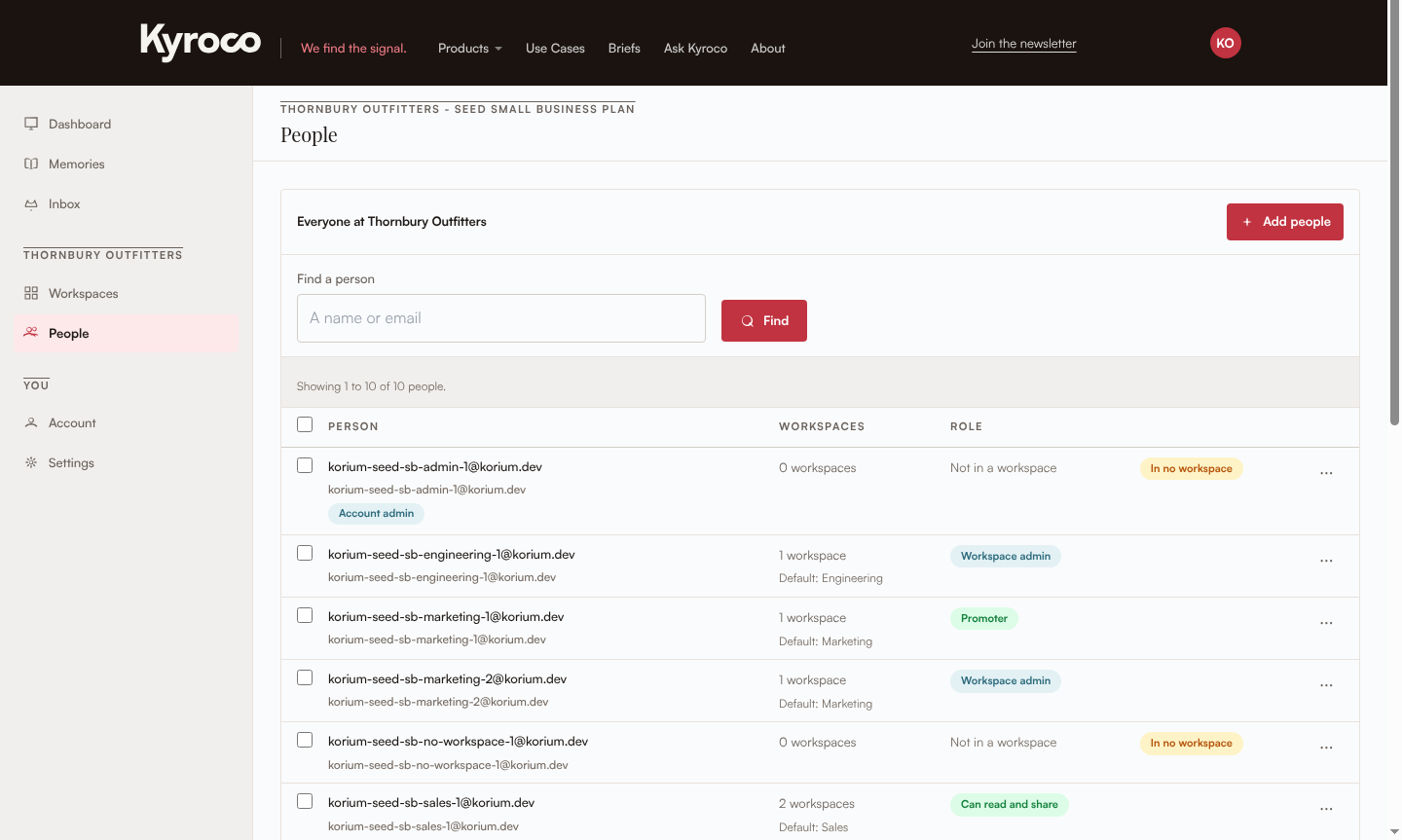
Open People. The heading reads “Everyone at {company}”. Each row has:
- Person. Their name and email. Account roles sit under the name: “Account admin” or “Billing”. A person you invited who has not joined yet has an “Invited” badge.
- Workspaces. The workspaces they are in. This column is not on Team.
- Role. The highest role they hold in any workspace, in this order: Workspace admin, Promoter, Can read and share, Can read. A person in no workspace reads “Not in a workspace”.
The Find a person box takes “A name or email”. Click anywhere on a row to open the person, or use the row’s “...” menu, which holds Open, Add to a workspace, and Remove or Leave for each workspace. See row menus. Their panel has two tabs. Overview shows their account roles, and Workspaces lists each workspace with their Role and Default. From there an admin can use Add to workspaces, and each row has Remove, or Leave on your own.
Add people
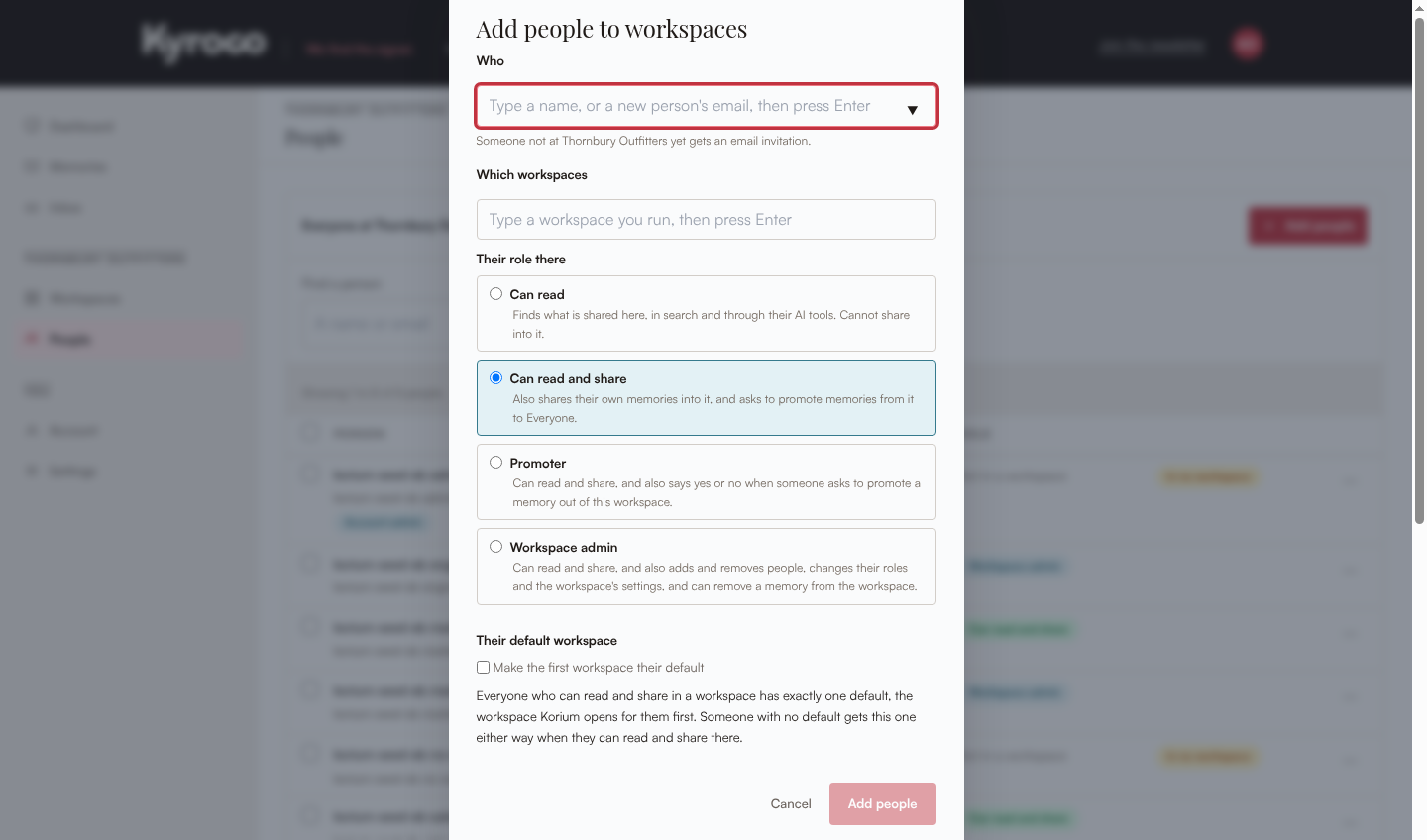
Choose Add people at the top of the page. The form has four steps.
- Who. Type a name and press Enter. To invite someone new, type their full email address. They get an email invitation. Only an account admin can invite someone new; everyone else sees “Only an account admin invites someone new by email.”
- Which workspaces. Type a workspace you run. If it does not exist, choose “Make workspace {name}” to make it.
- Their role there. Choose one of the four workspace roles.
- Their default workspace. Tick “Make {workspace} their default” if you want it.
Choose Add people, or Add {n} people when you picked several. A workspace admin can add people to the workspaces they run. A person who has been added to no workspace yet can still save to their own notebook.
The default workspace
Everyone who can read and share in a workspace has exactly one default, the workspace Korium opens for them first. A workspace where they can only read is never their default. Open a person and look at the Overview tab. An account admin, or the person themself, sees a Default workspace menu there, listing only workspaces where they can read and share. A workspace admin can also set the default to a workspace they run: on the person’s Workspaces tab choose Make it the default, or on a workspace’s Members tab tick people and choose “Their default is {workspace}”. Anyone else sees the name, or “Not in a workspace, so no default yet.” or “Not in a workspace where they can read and share, so no default yet.” The person’s row on the People page shows “Default: {workspace}” as text.
Make or remove an account admin
Only an account admin does this. Open the person and use the Account admin switch. The screen asks first.
- Making one: “{name} will manage every workspace and person and the account’s settings. They still read nothing in a workspace they are not in.”
- Removing one: “{name} stops managing workspaces, people and account settings.”
If it would leave too few, the screen refuses: “An account with more than one workspace needs at least two account admins. Make someone else an account admin first.”
Who can do what
| Action | Who can | What everyone else sees |
|---|---|---|
| Invite someone new | An account admin | “Only an account admin invites someone new by email.” |
| Add an existing person to a workspace | That workspace’s admin, or an account admin | The form offers only workspaces you run |
| Change a workspace role | That workspace’s admin, or an account admin | The role shows as text |
| Make or remove an account admin | An account admin | A “Yes.” or “No.” in place of the switch |
| Add people or set roles on a Team | The person who opened the account | “Only the account owner can add or remove people on a Team account.” |
| Set a default workspace | An account admin, the person, or the admin of a workspace they are in | The default shows as a name |
| Change reminder settings | An account admin | No Reminders card in Settings |
| Read the activity log in Settings | An account admin | “Only an account admin reads the activity log and sets how long it keeps rows.” |
Use the setup checklist before changing an automated workflow. Check your installed client’s help if its interface differs.