Using Korium well
The Inbox
The Inbox is the one place for everything that waits on a person. It holds the requests you need to answer, updates about your own memories, and the requests you asked for, with where each one stands.
The three tabs
Open Inbox from the menu. On a plan with sharing it has three tabs. The count beside the Inbox menu item tells you when something needs you.
| Tab | What is in it |
|---|---|
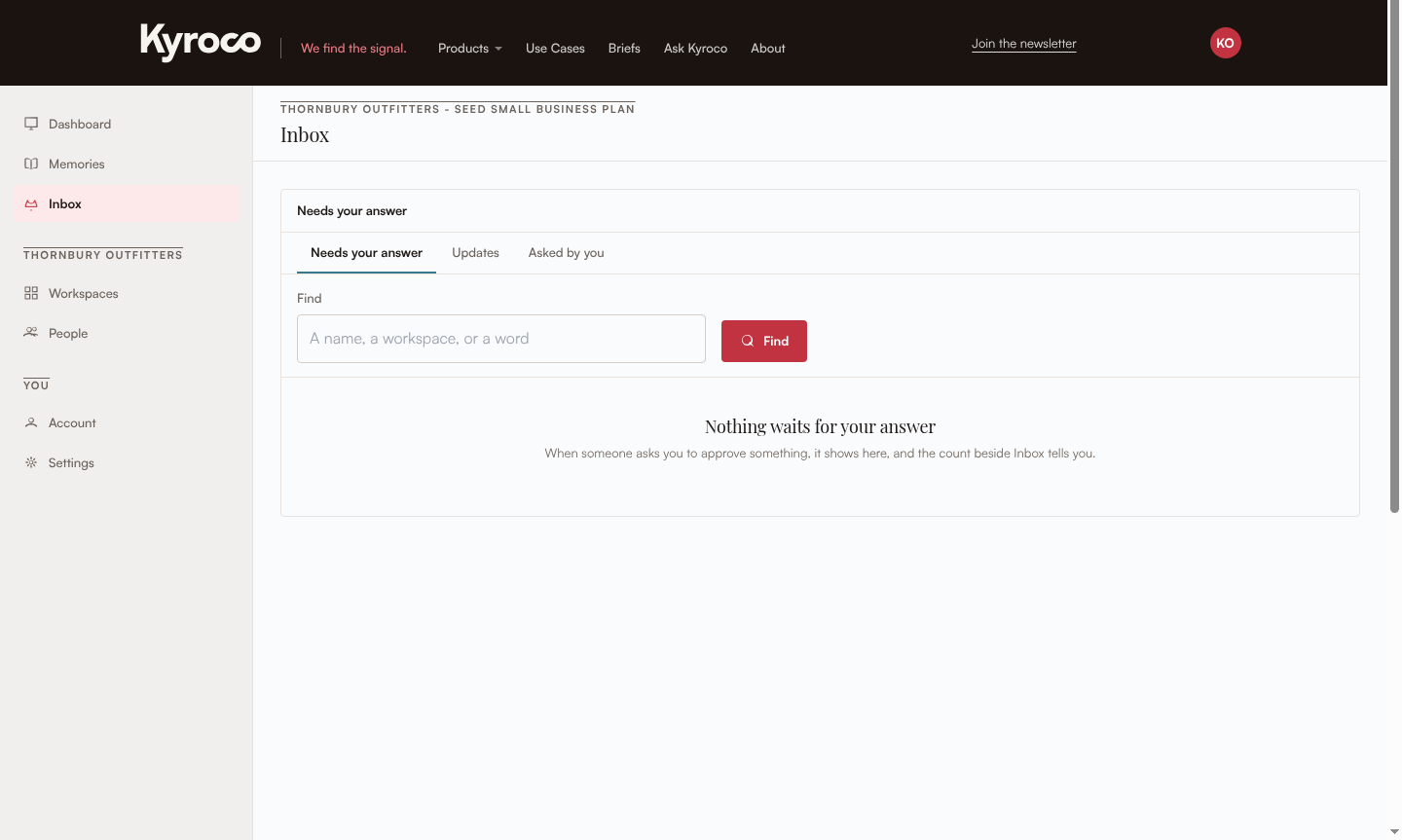
| Needs your answer | Requests waiting for you. When there are none: “Nothing waits for your answer”. |
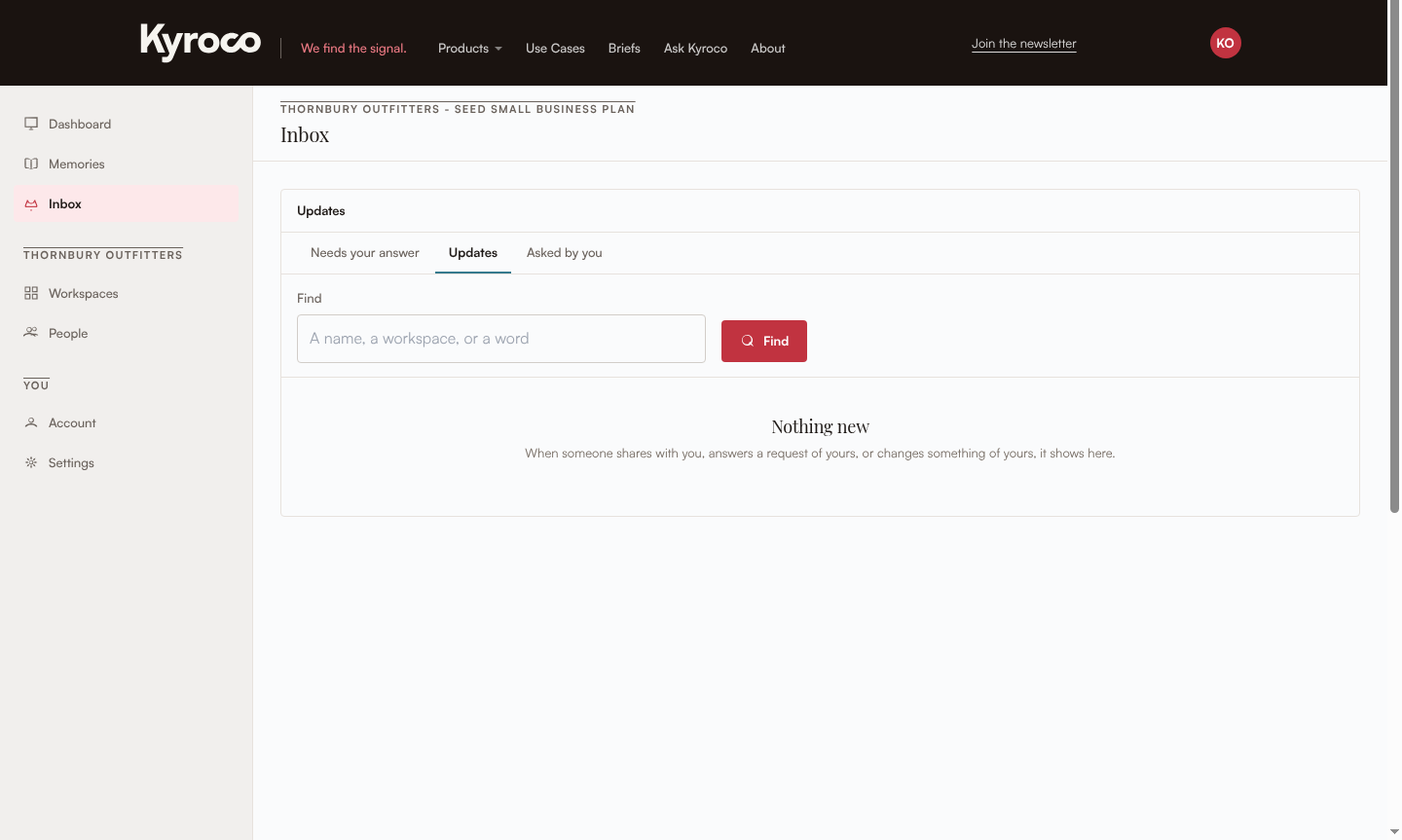
| Updates | Notes about your things, such as someone sharing with you or answering a request of yours. When there are none: “Nothing new”. |
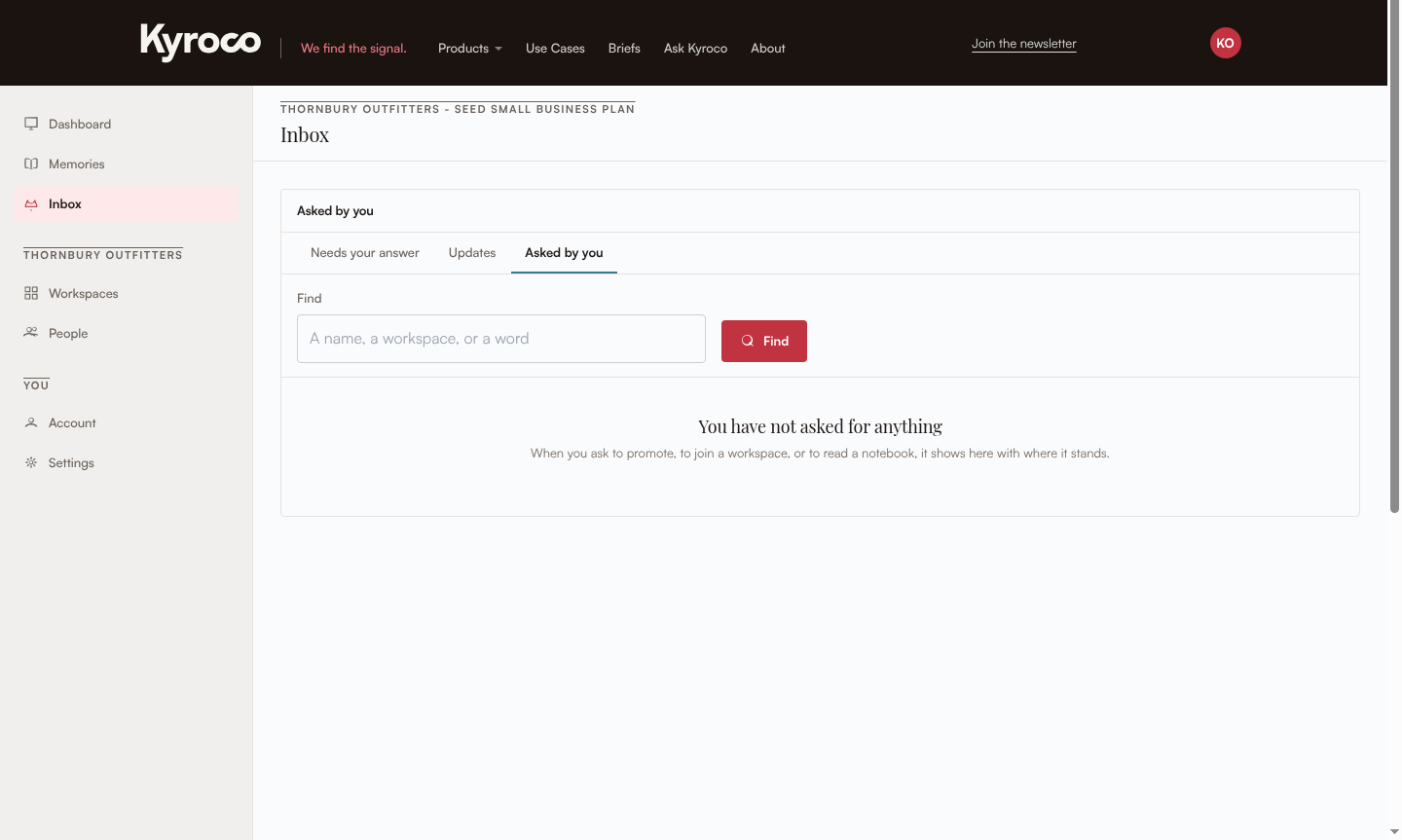
| Asked by you | What you asked for and where it stands. When there are none: “You have not asked for anything”. |
On a one-person plan there are no tabs. The page is called Updates and holds notices about your plan and your saves.
Each tab has a Find box (“A name, a workspace, or a word”) and a count line such as “Showing 1 to 25 of 40.”
What kinds of request appear
Each row has a kind badge.
| Kind | What it is | Who answers |
|---|---|---|
| Promote to Everyone | Someone asks to put memories in Everyone. | An admin or Promoter of the workspace they come from |
| Share with another workspace | Someone asks to share memories with a second workspace. | An admin or Promoter of the workspace they come from |
| Join a workspace | Someone asks to join a workspace. | One of that workspace’s admins, or an account admin |
| Read a notebook | An account admin asks to read a person’s notebook for a set number of days. | The notebook’s owner |
| Pass on a memory | Someone asks to pass on a memory shared with them alone. | The memory’s owner |
| Take over billing | A billing hand-over or takeover. | The person named, or the current billing owner |
You are shown a request only if you asked it, already answered it, or can give a yes today. Anyone else who opens its link sees “That request is not one you asked or can answer.” and nothing from the memory in it.
Answer a request
Click anywhere on a row to open it. Promote, share and join requests also have Approve and Decline buttons right on the row, so you can answer without opening them.
To answer many at once, tick the rows on Needs your answer. The bar shows “{n} requests selected” with Approve ({n}) and Decline ({n}). Only promote, share and join requests can be answered in a batch. The others open on their own.
Inside a request you see The memories, with a Yes and a No beside each one. The screen says “Answer each one, or say yes to all or no to all.” A memory’s text is shown only to people who can read it: “Only people who can read it see its text.”
- To promote or share, choose Send my answer. You can add why you said no; the person asking reads it.
- To let someone join, pick Can read or Can read and share, decide if it is their default workspace, and choose Let them in. If you say no, “they are told and can ask again.”
- To pass a memory on, choose Pass it on. If you say no, “it stays shared with {asker} alone.”
The answer is written in plain words: “Approved. 2 memories are now in Everyone.”, “Declined. 1 memory stays in {workspace}.” or “{Name} is in {workspace}, read only.” If a memory was removed or changed while the request waited, it is skipped and named: “Skipped memory {number} because it {reason}.”
Rules about who answers
- You never answer your own request. Your own requests show where they stand and have no Approve or Decline. Someone else has to answer. Most also have Withdraw while they wait.
- A yes counts once. If a second yes is needed and you gave the first, you see “Your yes is already in.” and who has to give the next.
- A request already answered stays answered. If someone else got there first: “This request was already answered.”
- No one ever approves their own join. An account admin joining a workspace is a request another admin answers.
- An AI tool cannot answer. It can list and explain what is waiting, and it tells you “An AI tool cannot say yes or no. Answer them in your Inbox.” The answer is yours.
Where a request stands
On Asked by you, each row has a Where it stands column:
- “Waiting for {role} and {role}”
- “One yes in, waiting for the second”
- “Approved”, or “Approved 2 of 3 memories”
- “Declined”, or “Declined: {reason}”
- “Withdrawn”
- “Closed: {reason}”: for example because the workspace was deleted.
While a request waits you can Withdraw it, except a request you made to take over billing from someone, which has no Withdraw. Open the row and choose Withdraw. The screen says “Withdrawn. No one needs to answer it now.” If someone answers from a screen they opened before you withdrew, nothing happens and the line is “This request was withdrawn.” A billing hand-over you started has its own words: “Withdrawn. You stay the billing owner.” If the other person answers it from an old screen, they see “This handoff is no longer waiting.”
Reminders
A request nobody answers never closes by itself, and never approves itself. Korium emails whoever can answer it a reminder. The first comes after 7 days and the second after 30 days. An account admin changes these under Reminders in Settings: “Remind them after [7] days, and again after [30] days.”
Your own memories do not send you an update when someone else removes them from a workspace or promotes them. Sharing a memory into a workspace released it to that workspace.
Updates
The Updates tab holds notes about things that are yours. Each opens the thing it is about. Tick rows to Mark read or Mark not read, or choose Mark all read at the top.
Who can do what
| Action | Who can | What everyone else sees |
|---|---|---|
| Answer a request | Whoever the request names, and never the person who asked | The asker’s own request has no Approve or Decline |
| Open a request | The asker, someone who already answered, or someone who can answer today | “That request is not one you asked or can answer.” |
| Withdraw | The person who asked, while it waits, except for a request to take over billing | No Withdraw button |
| Say no to a billing takeover | The billing owner | No Decline on the takeover row |
Use the setup checklist before changing an automated workflow. Check your installed client’s help if its interface differs.