Using Korium well
Share a memory, and stop sharing it
A memory starts in your notebook and stays private until you share it. You can share it into a workspace or with one person, and you can stop sharing it at any time. This page shows how, who is allowed to, and what everyone else sees.
What sharing does
Sharing never moves a memory out of your notebook. It adds a reader.
- Into a workspace. Everyone in that workspace finds it at once. No one has to approve it. The screen says: “Shared 1 memory into {workspace}. Everyone in it can find it now. You keep it in your notebook.”
- With one person. Only that person reads it: “Shared 1 memory with {name}. Only they can see it, and you can stop sharing at any time.”
Once a memory is shared into a workspace you have released it to that workspace. Its members can ask to promote it to Everyone, and the workspace’s admin or a Promoter answers, with no yes needed from you.
Sharing is part of the Small Business and Enterprise plans. On Team every memory is already shared with the team. On a one-person plan there is no one to share with.
Share from the Memories page
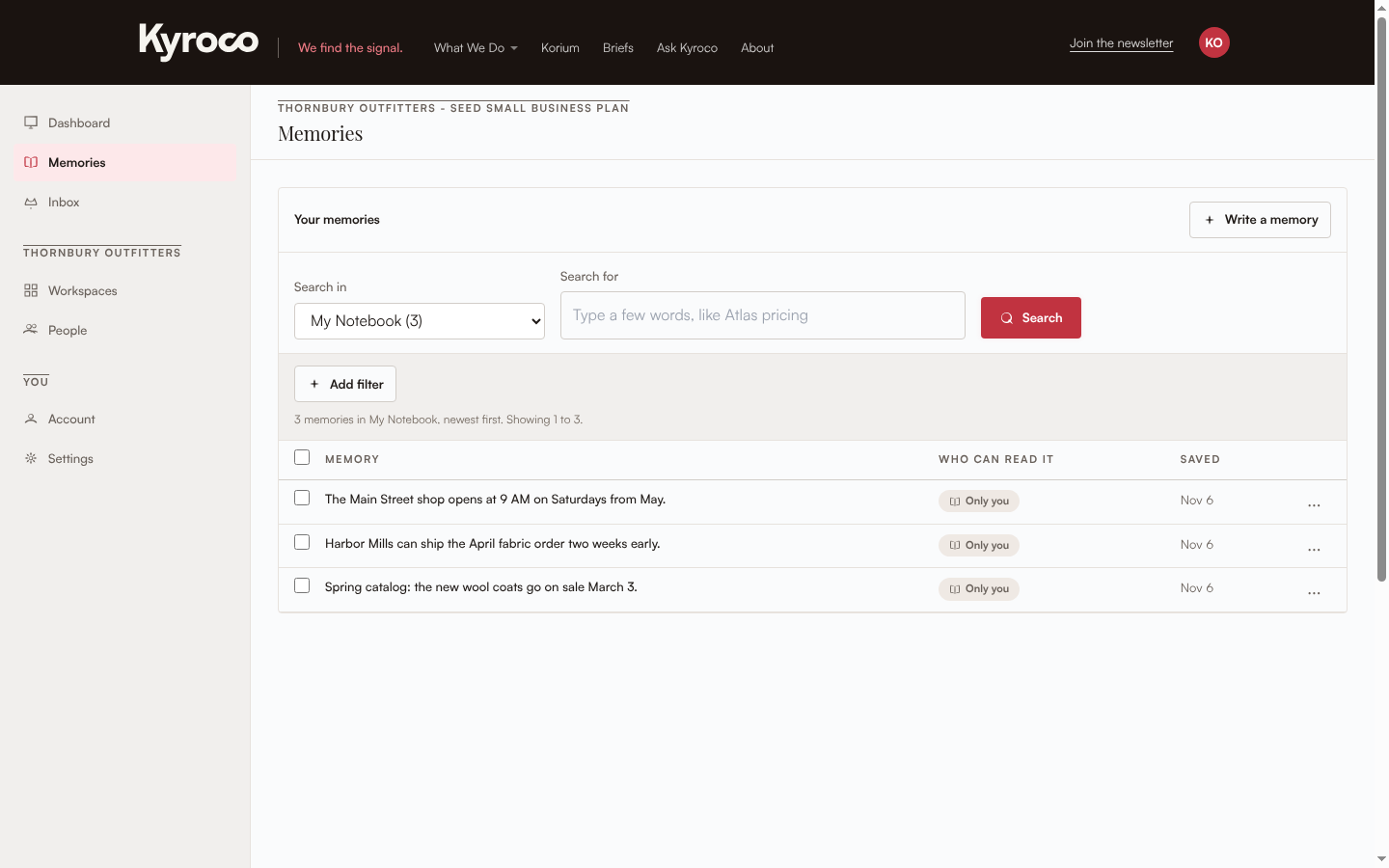
Open Memories, then use any of these.
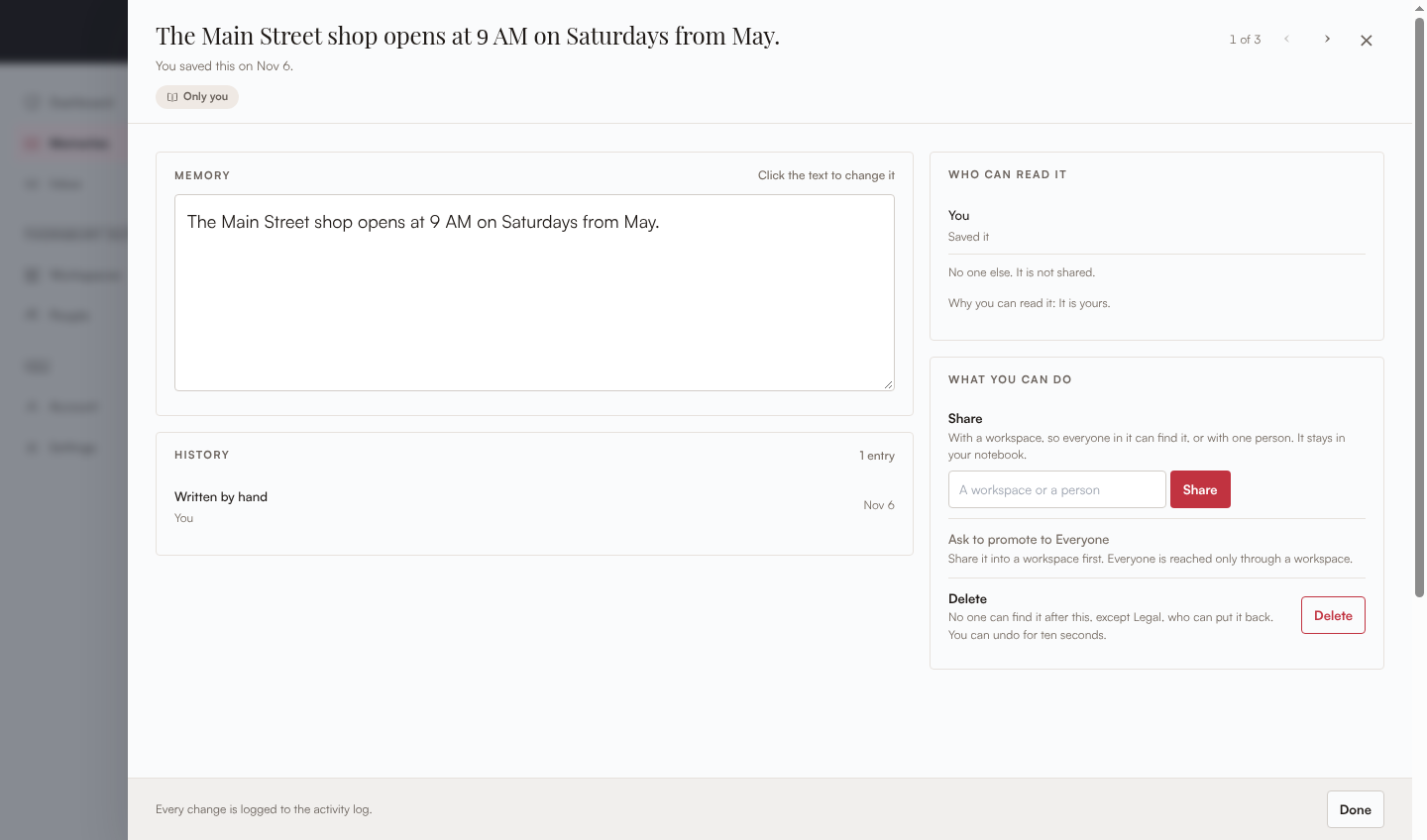
- Open a memory. In the panel, the Share section has a Share with box. Type a workspace or a person, pick one from the list, and choose Share.
- Use the row menu. The “...” menu on a memory has Share, with the note “Opens it, where you pick a workspace or a person.”
- Share many at once. Tick the memories you own. The bar at the top of the list offers Share ({n}). Its window asks Into a workspace (“Everyone in it can find them. They stay in your notebook.”) or With one person (“Only they can read them. You can stop sharing at any time.”).
Your AI tools cannot share a memory. Sharing is a step you take on the dashboard.
Who can share
Only a memory’s owner can share it. You can share only into a workspace where you can save, which means you are Can read and share, Promoter or Workspace admin there. A person who is in no workspace yet can still share a memory with one person.
When the screen refuses, it says why.
| If | You see |
|---|---|
| You only read in that workspace | “You can share only into a workspace where you can save.” |
| You are in no workspace yet | “You are in no workspace yet, so you cannot share into one. You can share a memory with one person. An account admin has been told and will add you to a workspace.” |
| The memory is someone else’s | “Skipped 1 memory because only a memory’s owner can share it.” |
| It is already there | “it is already in {workspace}”, or “{name} already has it” |
| Your plan does not share | “Sharing is part of Small Business and Enterprise.” |
| You are on Team | “On the Team plan every memory is already shared with the team.” |
Stop sharing
The owner can stop sharing at any time. Nobody approves it and nobody is told. The screen says: “Stopped sharing 1 memory. Only you can find it now; the people who could are not told.”
- Open the memory and choose Stop sharing beside the place, or use Stop sharing with everyone in the panel. The panel explains it: “Stops sharing it in every place at once.”
- Use the row menu. Stop sharing everywhere says “Only you can find it again. You can undo for ten seconds.”
- Stop many at once. Tick memories and choose Stop sharing ({n}).
If you stop sharing in one place only, the memory stays in its other places: “It stays shared in its other places, so anyone who reads one of those can still find it. No one is told.”
You get ten seconds to change your mind. Undo brings the memory back as it was: “Undone. 1 memory is back as it was.” After that you see “It is too late to undo that.” If the memory has changed in the meantime, Undo leaves it alone rather than lose the change.
Stop sharing needs the Small Business or Enterprise plan. On Team the screen says “On the Team plan memories stay shared with the team.”
Remove a memory from a workspace
A workspace admin can take someone’s memory out of the workspace without touching the owner’s copy. The memory leaves the workspace, its members stop finding it, and the owner keeps it in their notebook and is not told. The screen says: “Removed 1 memory from {workspace}. The owners keep it in their notebooks and are not told.”
Open the memory and choose Remove from this workspace, or tick memories and choose Remove from {workspace} ({n}). Removal also has a ten-second Undo.
Only that workspace’s admin can do it, and the button appears only for workspaces they run. Everyone else sees no button. An account admin cannot remove a memory from a workspace they do not run.
Ask to pass on a memory shared with you
When someone shares a memory with you alone, only they can share it further. In its panel, Ask to pass it on says “{owner} shared it with you alone, so only they can pass it on. Ask, and they say yes or no.” The owner answers in their Inbox. If the owner has left, the panel says “Its owner has left, so nobody can pass it on.”
Bulk actions say what they skipped
When you act on many memories at once, Korium does what it can and lists the rest under Skipped, and why. Common reasons:
- “only a memory’s owner can share it”
- “you can no longer read it”
- “it changed a moment ago, so try it again”
- “a summary stays where it is”: a summary Korium wrote from several memories is not shared or moved on its own.
If nothing could be done, the screen says “Nothing changed.” with the reasons.
Who can do what
| Action | Who can | What everyone else sees |
|---|---|---|
| Share into a workspace | The owner, who can save in that workspace | “You can share only into a workspace where you can save.” |
| Share with one person | The owner | “Skipped 1 memory because only a memory’s owner can share it.” |
| Stop sharing | The owner | “only a memory’s owner can stop sharing it” |
| Remove from a workspace | That workspace’s admin | No Remove button |
| Edit or delete | The owner | “Only a memory’s owner can edit or delete it.” |
| Pass on a one-person share | The owner says yes or no | The recipient can only ask |
Use the setup checklist before changing an automated workflow. Check your installed client’s help if its interface differs.