Using Korium well
Row menus
Most tables in Korium have a menu at the end of each row, marked “...”. It holds the things you can do with that row without opening it. This page lists every item, and says why an item you expect might not be there.
The rule
A row menu shows only what you can do. If you do not have the right for an item, it is left out rather than shown and refused. To see why you cannot do something, open the row. Its panel shows the action and says why it is not open to you, in plain words, for example “Only a memory’s owner can edit or delete it.”
Clicking anywhere else on a row opens it, so the menu is a shortcut. Screen readers announce the menu by what it belongs to, for example “Actions for this memory”, “Actions for this request” or “Actions for Marketing”.
Memories
| Item | What it does | Who sees it |
|---|---|---|
| Open | Opens the memory. | Everyone |
| Share | “Opens it, where you pick a workspace or a person” | The owner, on a plan that shares |
| Stop sharing everywhere | “Only you can find it again. You can undo for ten seconds.” | The owner, when it is shared somewhere |
| Delete | “You can undo for ten seconds.” | The owner |
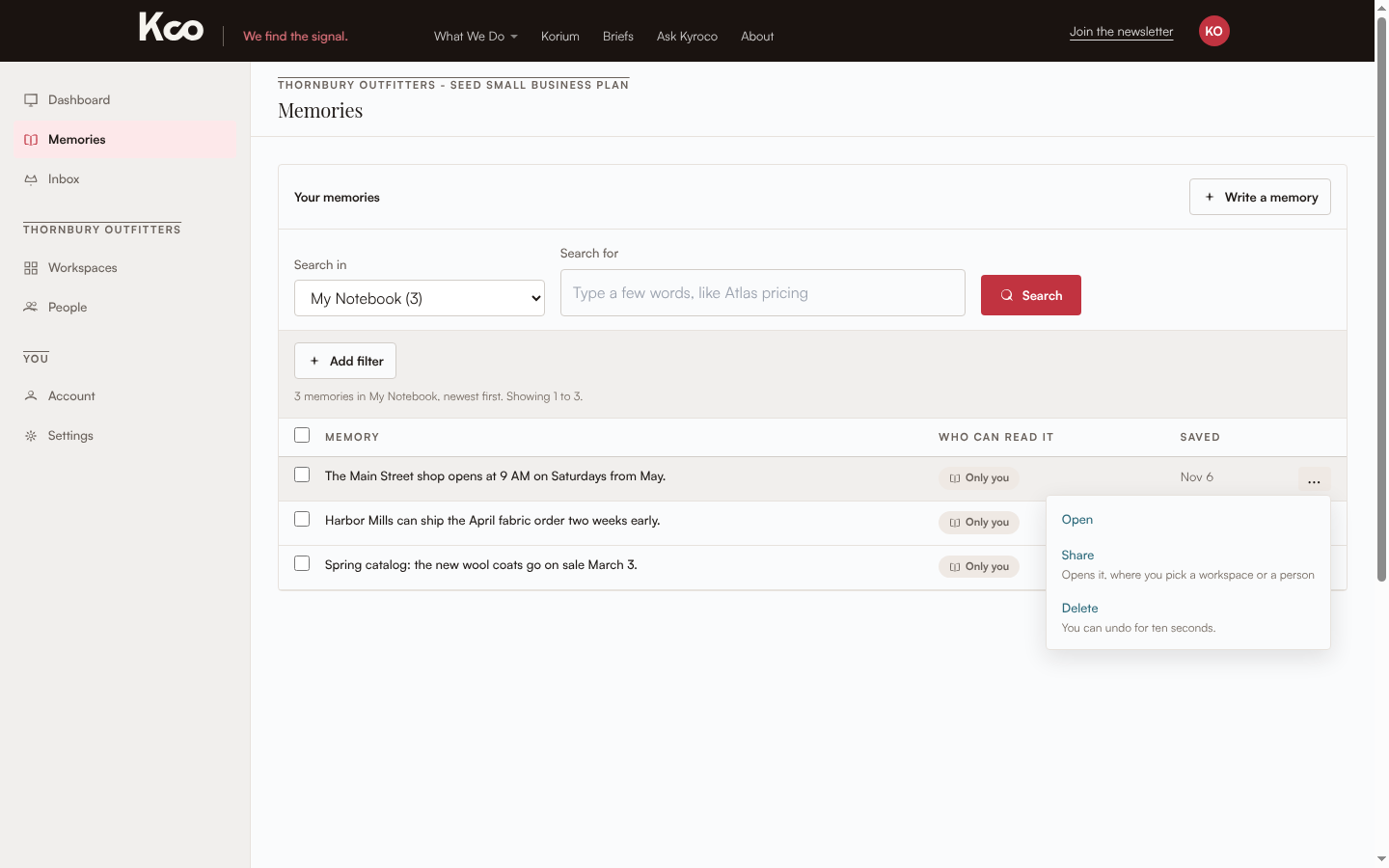
Asking to promote, asking to share with another workspace and removing from a workspace are in the memory’s panel and in the bar that appears when you tick rows. See share a memory and promote a memory.
Inbox
| Item | What it does | Where |
|---|---|---|
| Open | Opens the request or update. | Every tab |
| Approve | Says yes without opening the request. | Needs your answer, for promote, share and join requests |
| Decline | Says no without opening it. | The same rows |
| Mark read | Marks the update as read. | Updates, for an unread row |
| Mark not read | Brings it back to unread. | Updates, for a read row |
See the Inbox.
Workspaces
| Item | What it does | Who sees it |
|---|---|---|
| Open | Opens the workspace. | Everyone |
| Add people | “Opens it, with the Add people form” | An account admin, or the workspace’s admin |
| Rename | “Change its name or what it is for, on its Settings” | An account admin, or the workspace’s admin |
| Ask to join | “To read. Its admins answer.” | Someone who is not a member and has no request waiting |
| Leave | “Asks first” | A member |
| Delete | “Asks first” | An account admin |
See workspaces.
People
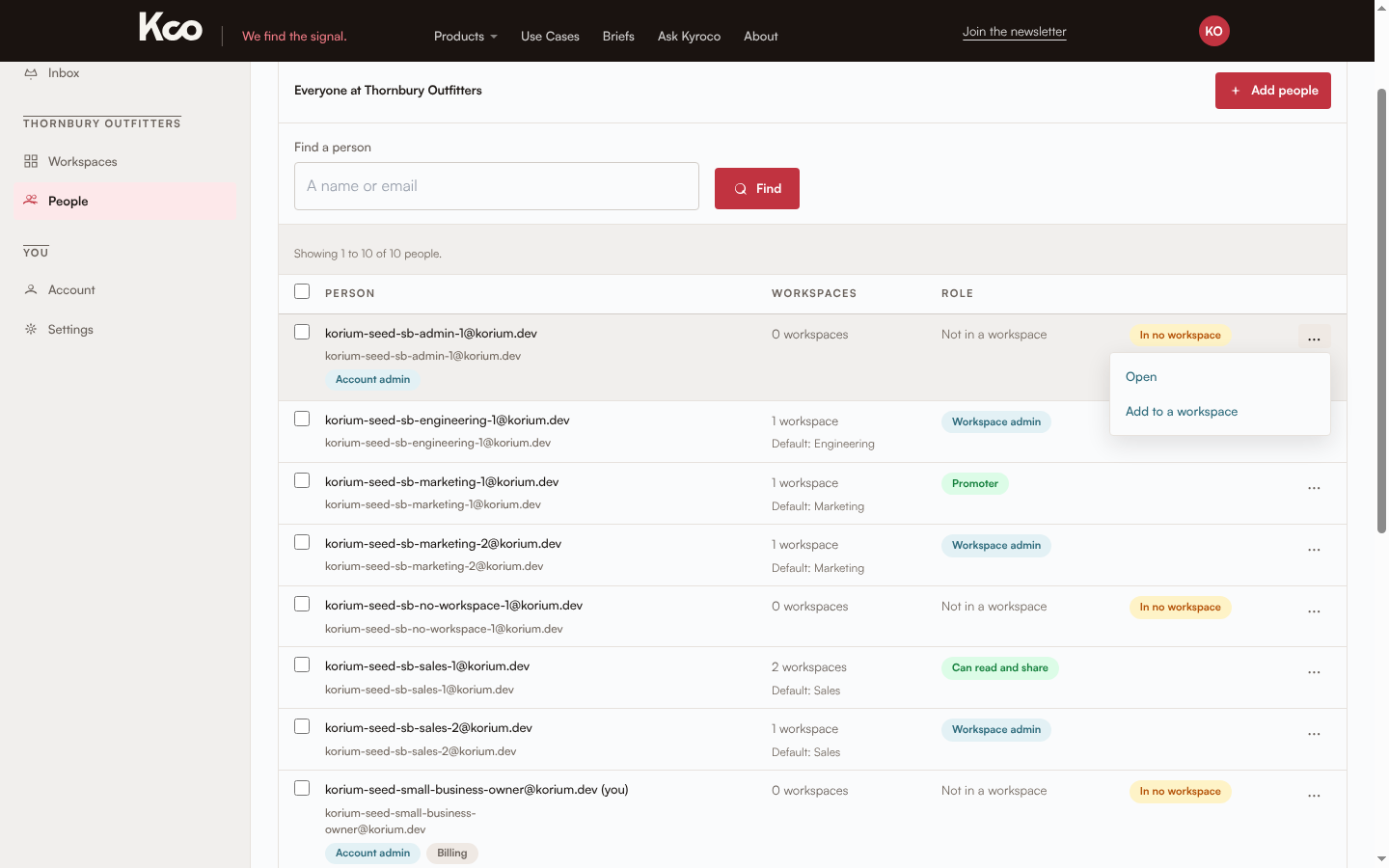
| Item | What it does | Who sees it |
|---|---|---|
| Open | Opens the person’s panel. | Everyone |
| Add to a workspace | Opens the Add people form for them. | Anyone who can add people, on Small Business and Enterprise |
| Remove from {workspace} | Asks first, then takes them out of that workspace. One item for each workspace of theirs that you run. | Whoever runs that workspace, and an account admin |
| Leave {workspace} | Asks first, then takes you out of that workspace. One item for each workspace you are in. | You, on your own row |
Each item does what the button of the same name in the person’s panel does, so you do not have to open someone first. On a Team everyone is in the one team, so the menu holds Open alone. A person you invited who has not joined yet has no menu, since there is nothing to do to them yet.
A workspace’s members
On a workspace’s Members tab, the menu on a member’s row holds Remove from this workspace. It asks the same question as the Remove button above the list. Only whoever runs the workspace sees it. An admin of that workspace, or an account admin, also changes a person’s role (Can read, Can read and share, Promoter or Workspace admin) from the Role column. Everyone else sees the role as text. See people and roles.
Account invoices
The invoices table on Account has a row menu too.
When an item is missing
| You expected | Why it may be missing |
|---|---|
| Share or Stop sharing | You do not own the memory, or your plan does not share. Sharing is part of Small Business and Enterprise. |
| Delete | You do not own the memory. |
| Approve or Decline | The request is not one you can answer, or it is a kind that needs its own page. Open it. |
| Add people or Rename | You are not an admin of that workspace and not an account admin. |
| Remove from a workspace, on People | You do not run that workspace. Only whoever runs it can remove someone. |
| Delete a workspace | Only an account admin deletes a workspace. |
Use the setup checklist before changing an automated workflow. Check your installed client’s help if its interface differs.